MegaTune can store and retrieve set-up files, both entire set-ups (.msq files), and VE table files (.vex).
- Open a
previously saved .MSQ settings file. This is a file that contains all the
set-up parameters specific to your engine.
- Save a
.MSQ settings file. This is a file that contains all the set-up parameters
specific to your engine. You can (and should) save your set-up regularly to
allow you to recover your settings and to see that changes you have
made. It is especially useful if you are trying different combinations while
tuning, find the engine runs worse, and want to revert to a known good
set-up. MSQ files also allow you to exchange set-ups with other people with
similar combinations.
- Save As
saves an .MSQ file, but allows you to change it's name or
location.
- MSQ Info
will list all the .MSQ files in the MegaSquirt® folder and its sub-folders, and tell you both their MegaTune version (3.00 is the old style, 4.00 is the XML style that is 'portable' between versions) as well as their expected signature (compatible code version). This can be very helpful when trying to find particular files.
- Offline allows you to work with MegaTune without having it constantly polling for a connection, which can slow it down a lot. This is helpful if you want to edit an MSQ file without connecting to MegaSquirt® EFI Controller, for example.
- Datalogging allows you to turn on the logging of
real-time variables to a file on your PC. Once you have enabled datalogging, MegaTune polls the MS
controller when any of the front page, runtime display or tuning screen are
active, and writes this data to a file. The file has a comma-separated value
format and defaults to having an extension of “xls”, so Microsoft Excel will
open them automatically. There are three datalog formats: classic, full and
raw. The classic format is useful for interfacing to older programs (old
versions of MST3k require this format). The full format is the most useful
for examining values manually and for making plots and such (it is the only
format with a continuous real-time clock). The raw format is simply that,
the exact 8-bit values returned from MS; these values are raw ADC counts and
internal values, so do not expect to see kPa values or voltages in a raw log.
The classic datalog may be used as input to Phil Tobin's excellent MegaLogViewer program to view the parameters as graphs (even in real time), as well as automatically correct your VE table. Get the MegaLogViewer at www.ideasandsolutions.biz/MegaLogViewer/download/. MegaLogViewer will process your datalog, automatically detecting
which type of log is being read and acting accordingly. When datalogging is
enabled, the second box in the status bar on bottom of the front page
contains a bold “LOGGING” indicator.
- Record (Alt-L) - starts a datalog.
The runtime values will be saved to a file once you give the file a name.
A default name is 'suggested' by MegaTune, and has the format
'datalogyyyymmddhhiii.xls', where:
- yyyy is the year,
- mm is the month (0-12),
- dd is the day (0-31),
- hh is the hour (0-24), and
- ii is the minute (0-59),
- Off - stops the datalog from recording additional runtime variables.
- Options - you can specify optional text be recorded in any datalog generated by MegaTune. If you wish for some user-defined text to be included at the top of the datalog, then write some text into the edit window of the options dialog, where you see the label "Log file comments:". If you select "Prefix log with dump", then every datalog in this session will have a MegaTune dump of the controller configuration at the front of the log file. This dump is contained in quoted strings, so you can still read the file into MegaLogViewer correctly, and the dump appears as text if you open it in Excel. Likewise, if you select "Suffix log with dump", then the datalog will contain a dump at the end. If you have changed your configuration between starting the log and finishing it, then you will be able to compare the two and see these differences. This suffix dump is written out automatically if MegaTune is terminated, so you need not manually terminate logging.
- Burst Mode datalog at the maximum speed the comm port will support, regardless of the timer interval set in the communications settings. This will result in very large datalogs log files in very short periods.
- Record (Alt-L) - starts a datalog.
The runtime values will be saved to a file once you give the file a name.
A default name is 'suggested' by MegaTune, and has the format
'datalogyyyymmddhhiii.xls', where:
- Table Export
(MegaSquirt only)
This allows you to export a VE table. You can export or import VEX files into any of the VE tables. These are saved in the VEX format. Be sure to give your saved files descriptive names. With MegaSquirt-II, you load the files from the tables menu.
- Table Import
(MegaSquirt only)
This allows you to import a VE table. You can export or import VEX files into any of the VE tables. These are saved in the VEX format. The table will import VEX files of different sizes and automatically adjust them to match the current table size. With MegaSquirt-II, you load the files from the tables menu.
- Confgurator opens the mtCfg.exe file to allow you to set things like the CODE_VARIANT and activate the appropriate INI file for your installed code.
Start up the MT Configurator (from the Start menu under MegaSquirt® EFI Controller, or from MegaTune under 'File/Configurator'). Open the MegaTune2.25 tree item, and you'll see a number of megasquirt-II.ini.N.N files. Pick the one where N.N matches the version of embedded code you are running (i.e., megasquirt-II.ini.3.0), highlight the .ini file version that you wish to use and execute File -> Activate. This will rename it to be "megasquirt-II.ini" (deleting the existing megasquirt-II.ini file first). It will then be used by MegaTune when it starts up.
(Note that all 2.XY use the same 2.X INI file. For example, the v2.853 code uses the 3.0 INI file. This is the way the code upgrades are designed. Major revisions are incremented by +0.1 and require a new INI file, minor revisions (+0.01) use the same INI file.)
You need to tell MegaTune which version of MegaSquirt® you have (MS-II), as well as the EGO type, etc. To do this, use the mtCfg program, which opens automatically during the installation process (it can be opened directly from the MegaTune folder at any later time). Look for the CODE_VARIANT variable, it will be in 'Car1/settings.ini/Settings/CODE_VARIANT' in the directory tree on the left side of the mtCfg window. Click on CODE_VARIANT. You can then use the drop box in the upper right section of the window to select your code variant.
While you are in the setting.ini files, you can verify or change the EGO sensor option under LAMBDA_SENSOR if necessary. You can use mtCfg to change the color depth, temperature units (°F/C) and a large number of other parameters for MegaTune. See the documentation in the files displayed in mtCfg.
Be sure to 'Save' the file.
- Exit
This will close MegaTune.
- General
On the main MegaTune2.25+ menu is an item called 'Settings/General'. You can set these as follows:
- ECU Type: This should be set to match the ECU you have, either 1 for MS-II, or 2 for MicroSquirt. Note that for 2.88+ Code, the first thing you must do is set the ECU Type (under 'Fuel Set-Up/General') to match your hardware (MS-II opr MicroSquirt), MegaTune will not let you change anything else until you do this. ECU Type setting was inserted to head off the potential MicroSquirt® problems due to the coils being turned on with the old default configuration. As of the 3.0 code, if ECU Type is not set, the code will put the ignition outputs in a safe state (cycling the rpm from 0 to 8000 rpm, and also flashing the fuel pump LED) and wait until a known ECU type is put in by the user.
- Engine Displacement: The engine's displacement in cubic inches, it was put in to be able to convert MAF values to MAP values, so as to keep consistent units everywhere.
- Injection Timing Delay (InjStart): This is a user input in percentage after tach pulse for when to start an injection, and users can tune this to optimum. It is a value that is a percentage of the number of degrees between injection events:
- 90° for a 4 stroke V8,
- 120° for a 6 cylinder/4-stroke (even fire),
- 180° for a 4 cylinder/4-stroke.
So a value of 40% on a 6 cylinder gives an injection delay of 40%×120° = 49°. The injection will then occur at 48° after the tach event, or 48° - trigger offset (btdc).
Note this is a variable for injection start angle relative to the tach pulse (not necessarily TDC). The start of the fuel injection pulse width will begin at:
Tach time + InjStart % × predicted delta_t (between present and next tach pulse)which is in crank degrees. When that time is exceeded in the main loop, MAP is grabbed, the pulse width is calculated, and fuel is injected in that sequence.
Now because MegaSquirt® does not do sequential injection (though the MS-II Sequencer™ controller will), it won't squirt at the same point in the engine cycle for all the cylinders connected to the same injector driver, but by moving the injection timing delay around you may be able to improve your idle. There is no simple calculation to come up with the best number for you to use. The general idea is to avoid injecting into an open exhaust valve. Since MegaSquirt® controllers use a banked injection system, then it would be better to move the timing on all the cylinders to a place where it avoids this on all cylinders (or as many as can be accommodated).
What you have to do is adjust the injection timing delay from 0% to about 80% and see which value gives you the best idle - as determined by the highest vacuum, or leanest AFR, or smoothest idle, or whatever else you are tuning for.
Of course there is a limit - you can't inject at say 98% of the next predicted tach pulse interval because there may not be time to calculate it all. Plus there is bit more fluctuation in fuel timing - NOT in the overall fuel pulse width, which will still be interrupt driven and exact, but in when the injection starts. This could vary by as much as a few milliseconds at low rpm, but the idea is that it is way better to inject within +/- a few ms of optimum than to consistently inject at a non-optimal value.
However, to ensure there is plenty of time to calculate the PW and start the injection, the fuel start time is limited to force it to occur at least 2 ms before the predicted next tach pulse. So if you look at a scope you will see the fuel pulse move right relative to the tach input as you increase InjStart %, but it will stop when it gets within 2 ms of the next tach in pulse, regardless of your increasing InjStart %.
- Dual Table Use choose whether you want to control each bank of injector independently, or to run both injector banks off one set of VE/AFR tables.
- Barometric Correction choose whether you want:
- 'None' - no barometric correction,
- baro correction based on the initial start-up MAP reading ('Initial MAP Reading'), or
- 'Two Independent Sensors' for continuous baro correction (ONLY if you have installed a second MAP sensor.)
- X-Tau UsageX-Tau usage can be set to off, or accel/decel using this parameter. The X-Tau tuning values are set in the X-Tau Time Table menu item under Tables. See the X-Tau page for more information.
- Prime, ASE, WUE Tables. Chose whether you want two point (a high temperature and a low temperature settings) or 10 entry tables for the prime pulse, afterstart enrichment, and warm-up enrichment. The tuning values for tables are listed in under the menu item Tables. Note that switching from 2-point to tables (or vice-versa) does NOT transfer your settings! For example, if you started out with values optimized for your application of 6.0 and 1.8 in the cranking pulse widths, if you then switch to 'tables', the cranking pulse width values will be the much larger defaults, and not a function of the 6.0 and 1.8 you originally entered. So be sure to check ALL the tables (or 2-point values, if going to 2-point) for appropriate values if you change this setting.
Input Smoothing Factors Input Smoothing Lag Factors Lag factors force the variables to change more slowly than the actual input value. Note that in all cases, 100 is no lag effect at all, and smaller numbers slow the input response speed. The lag factors are used as follows:
NewValue = PreviousValue + (NewValue - PreviousValue) * (LagFactor/100%)- MAP Averaging Lag Factor
- RPM Averaging Lag factor
- TPS Averaging Lag Factor
- Lambda Averaging Lag Factor
- CLT/IAT/Battery Averaging Lag Factor
- Knock Averaging Lag Factor
Sampling Rates: Reasonable values for tpsdotSample and mapdotSample are 25 ms for both. If you set mapdotSample and tpsdotSample both to 0, the program will try to sample tps and calculate tpsdot as fast as it can. This will make tpsdot vary all over the place from the tiniest variation in tps. And the same for mapdot. So keep the values reasonable, between ~10 and ~50.
- MAP Sample Rate: Map and Mapdot are sampled/ calculated every tach pulse. But if you get to too high an rpm, such that the time between tach pulses is < mapdotSample, then it leaves the old mapdot until the next tach pulse. This is done so that the total time is > mapdotSample. This prevents noise fluctuation. It doesn't have any downside because acceleration enrichment becomes less and less important as rpm goes up.
- TPS Sample Rate: tpsdot is sampled independently with its own tpsdotSample. It is similar to the mapdot however. It is independent of tach pulse arrival and will, if tpsdot exceeds your threshold, add an accel increment to the pulse width when it is time to inject.
- Idle Control
The basic idea of IAC is that the motor or PWM solenoid starts out with a large opening of the air valve at cold startup, then gradually closes as the coolant temperature rises. The basic motor position at any given time is determined from the input table of step position versus coolant temperature. To this basic control algorithm, several features have been added as described below. You need to set MegaSquirt-II to tell it if you have a fast idle "solenoid type" valve, a PWM type valve, or a stepper motor IAC, or none of these. These are selected under Settings/Idle Control in MegaTune:
- Algorithm (IdleCtl): If you have a:
- On/Off Fast Idle Valve (FIdle): Set the algorithm to 'Solenoid'. You can also set your Fast Idle Threshold if you have installed a fast idle solenoid. Enter a coolant temperature to turn on the fast idle solenoid. A typical value is 145º Fahrenheit. The Fast Idle valve will be activated below this temperature (145ºF) and turned off above 145ºF. The Fast idle Threshold is independent of any warm-up enrichment. Fast idle valves generally have one or two wires.
- Idle Air Controller (IAC): If you have a stepper motor IAC,
you can set the IAC Start position, as well as ten intermediate
positions based on the coolant temperature to allow a decreasing amount
of "extra air" as the engine warms up. These are set under
'Tables/Idle Steps' in MegaTune. Stepper motor IACs usually have
four wires.
- IAC Stepper Moving Only: Powers the stepper only when changes in pintle position are requested. This is the most common type, it holds its position if not powered, and is difficult to turn by hand.
- IAC Stepper Always On: Powers the stepper at all times. Required if your stepper 'free wheels' when you spin its pintle un-powered with your hand.
- PWM Warm-Up: This is pulse width modulated warm-up, such as with the Ford PWM idle valves. You need to make modifications to use this with MS-II, see: www.megamanual.com/ms2/IAC.htm#pwm
- 15-minute IAC: Operates the stepper IAC as 'always on' for 15 minutes, then switches to 'moving only'. This is sometimes helpful if your IAC operation is erratic.
- Fast Idle Temperature: The temperature at which to switch off the solenoid type idle valve.
- Time Step Size (ms) (IACtstep): IAC stepper motor nominal time between steps.
- Acceleration Step Size (ms) (IACaccstep): not currently used.
- Minimum Steps to Move: This command is used to move the stepper IAC a minimum number of steps so that it isn't 'jiggling' between steps and potentially loosing count.
- PWM Frequency (Hz) (PWM_step): This is the PWM frequency in Hertz (cycles per second) used for the PWM Idle valve, when it is enabled. The PWM frequency can only be adjusted in steps of 80 Hertz, from 80 Hz to 800 Hz.
- Start Value (IACStart) - changes requires an MS-II reboot : This is the number of IAC steps the pintle is retracted to the 'wide-open' position when MegaSquirt® is powered up. It is used at all temperatures.
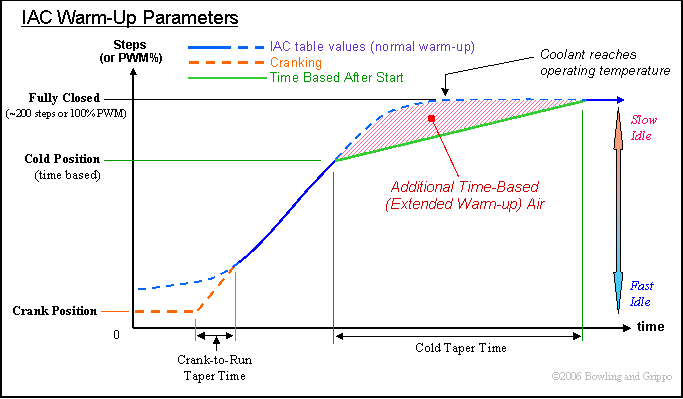
- Cranking Position (IACcrankpos): During cranking, extra air may be useful in the same way as extra fuel in cranking pulses. The table value for the starting temperature may be fine after the engine has started up, but during cranking more power may be needed, especially if the starting temperature is cold. To provide this, you can input a step position that provides a larger than normal air opening during cranking. So, if in cranking and 'Cranking Position' < table value, then the IAC motor position (or PWM%) is set to 'Cranking Position', and when cranking is done, the motor position starts tapering (over the 'crank to run taper time') up to the table value over a user input period, typically a few seconds. (See the diagram below) If this feature is not desired, Just set 'Cranking Position' to a value higher than any table value. Then the table value will always be used since it provides more opening.
- Crank-to-Run Taper Time (IACcrankpos): This is the time over which the cranking position of the idle (either the stepper steps or the PWM%) is moved to match the table value (see diagram below). Higher values give a higher idle for longer periods, which can improve starting performance.
- Hysteresis (°) (IdleHyst): Hysteresis is a general term used in control applications. It refers to the amount something must change before something else will change (usually the amount an input must change before an output is adjusted). In MegaSquirt-II IAC control, the hysteresis refers to the amount the temperature has to change before the stepper motor is moved to the new calculated position.
So, for example, if the motor last moved at 140°F, and the hysteresis is set to 5°F, then it won't move again until the temperature reaches 145°F. The setting prevent from moving the motor back and forth constantly, heating it unecessarily.
A value from 5°F to 10°F is good for most installations. This input can be used to avoid continuous motor motion (and wear) for small coolant temperature changes and random 'jitter' in the coolant temperature signal . Changes to the motor are only made when new coolant temperature > coolant temperature on the last move, or, new coolant temperature < (coolant temperature on the last move - Hysteresis temperature). What this does is allow constant motor motion while the coolant temperature is rising, but when it peaks, there will be no further motion unless things cool back down - which is unlikely.
- Time Based Afterstart: No one should use the Time Based After Start (extended warmup) option unless they need it, and very few will. Disable it by setting the 'cold temperature to -40°F. Time based option is meant to operate as follows: it only is used if the starting temp (at power on) is < Cold Temperature, and Cold Temperature should be fairly cold. (Set to -40 or less to get rid of the option, which 90% of people don't need.) Then, the car and idle valve operating normally during the warm-up until you get to the Cold Position PWM value, say 80% of fully closed. That is where you would typically switch to the time-based, and the reason is that if it continues to taper the coolant normal operating temp, SOME cars (very few) continue to need a fast idle (possibly due to heavy oil which is nowhere near at operating temp when the coolant gets there, plus a hot cam with not enough idle torque to overcome the oil drag). So starting from the 80% closed position you taper to fully closed over a span of maybe a minute or even 5 minutes. The car should never start with a idle PWM table value > Cold Position unless the start temperature is > Cold Temperature, in which case time based won't be used.
- Cold Temperature (°) (IACcoldtmp): This defines the initial coolant temperature below which the afterstart taper will be extended, based on the Cold Position and Cold Taper Time. It should be set fairly cold, generally not more than 20° F.
- Cold Position (steps) (IACcoldpos): The Idle PWM values at which time based afterstart tapering is initiated. Note that this value must be higher than the lowest value in your IAC PWM table, or you can get strange operating results.
- Cold Taper Time (sec) (IACcoldxt): This is the number of seconds that MegaSquirt® takes to move from the 'cold position' to the position indicated in the IAC step table for the current coolant temperature.
- Cold Temperature (°) (IACcoldtmp): This defines the initial coolant temperature below which the afterstart taper will be extended, based on the Cold Position and Cold Taper Time. It should be set fairly cold, generally not more than 20° F.
- Algorithm (IdleCtl): If you have a:
- Port Settings The general purpose I/O logic in MegaSquirt-II code version 2.3 (and above) allows for using the following seven pins as 'spare' outputs:
- FIdle - PM2 (DB37 pin #30),
- LEDs (x3),
- Injection LED - PM3,
- Accel LED - PM4,
- Warm-Up LED - PM5.
- IAC1,2 these are capable of driving over 0.5 Amp, sufficient for most automotive relays,
- IAC1 - PT6, (Note that there is an error in some versions of MegaTune, and IAC1 actually controls IAC2, and vice versa. Be sure to test your installation.)
- IAC2 - PT7.
- Knock Enable - PA0.
The two spare port "T" pins (PT6 and PT7) are normally used to drive the stepper motor chip (IAC1,2). When you set pin PT6 high, it will make 1 of the 4 stepper output pins high and the other low, and no effect on the last two - which are controlled in the same way by pin PT7. So, by picking 2 of the 4 IAC outputs, you have two 12V spare pins that will directly drive about 0.5 Amps with no transistor needed. This is more than enough to drive a relay directly. If you are going to use port PT6 or PT7 as spares (IAC1,2), IdleCtl should be set to 0. This will keep the the stepper chip 'always enabled' and not turn it on and off, which would prevent the port from working as intended.
The pin on/off commands are set by pointers. When a user wants to use say an LED as a spare output, then the pointer is set to point to a dummy register in RAM (random access memory), and that's it. It's just like setting a jumper on the PCB to route a signal one way or another.
The spare pins have generic logic based on the values of up to two of the real time display variables. The user can specify these in MegaTune and they will be passed to MegaSquirt-II as offsets. The user can also specify:
- Variables:
- rpm,
- MAP (manifold absolute pressure),
- tps (throttle position),
- clt (coolant temperature),
- etc..
- Threshold values,
- Conditions:
- 'less than' (<),
- 'equal to', or (=),
- 'greater than' (>).
- Pin set value (whether the pin should go high (5 Volts) or low (ground) when the conditions are met), and
- Hysteresis deltas (the amount the variable must change before the pin set value can be reset). The inclusion of a hysteresis factor is important to prevent the device from switching on and off rapidly at the set point due to slight fluctuations (or noise) in the sensor signal. Rapid fluctuations can rapidly wear out relays and other electro-mechanical devices,
- And combine two conditions with:
- AND ( & ) - meaning both conditions need to be satisfied,
- OR ( | ) - meaning the pin is activated if either condition can be satisfied, and
- blank ( ' ' ) - meaning the first condition only is used.
- Injector
Characteristics
- Injector Opening Time (ms) (InjOpen) is the amount of time required for the injector to go from a fully closed state to a fully opened state when a 13.2 volt signal is applied. Since fuel injectors are electro-mechanical devices with mass, they have latency between the time a signal is applied and the time they are in steady-state spraying mode. Typically, this value is close to 1.0 milliseconds. Note that the closing time should theoretically be subtracted from the opening time, but the closing time is generally very small compared to the opening time.
- Battery Voltage Correction (ms/V) (BatFac) is the number
of milliseconds that MegaSquirt-II adds to each fuel injection pulse to
compensate for the slower opening of the injectors with lower supply
voltages. Generally 0.10 ms/V or 0.2 ms/V is about right. So, with a 0.20 Battery voltage correction factor and supply voltage of 14.5 Volts, a 1.0 millisecond 'opening time' is adjusted to 1.0 - (14.5-13.2)*0.20 = 1.0 - 0.26 = 0.7 milliseconds.
Conversely, If you had injector specs that stated the opening time was 0.7 milliseconds at 14.5 Volts, and your battery correction was 0.20, then you should enter 1.0 as the 'Injector Opening Time'.
- PWM Time Threshold (ms) (InjPWMTim) is the amount of time the Pulse width has to be on before PWM starts. This allows full voltage to reach the injectors while opening. Generally you should set this to the same value as your injector opening time (~1.0 millisecond)
- Injector PWM Period (µsec) (InjPWMPd) - changes requires an MS-II reboot - This is the time
between cycles of on/off and the Injector Duty Cycle is the % of time it
stays on relative to the total time for one cycle. You use high frequency
to make things smooth. Since the injectors stay open for milliseconds, you
need a period that is much shorter than that. Such a frequency never lets
the injector start to close - the turn off turn on cycle is so fast that
the injector stays where it is. Keep this value between 10 and 25 kHz
(100-40 µsec). Generally, use the default, unless you have determined another frequency is optimal.
The optimal PWM current limit frequency is correlated with the inductance of the injector, resistance of the loop, and elapsed time/duty. The goal is to switch the injector current on and off without an appreciable change in *average* injector current - the current which holds the injector open. Faster PWM frequencies mean less current deviation. But since the injector is already held wide open (or should be) a faster PWM frequency will not hold it open any more than it already is.
A overall PWM setting above several kiloHertz (kHz) works based on most automotive injectors, and there is no advantage of running the frequency higher. In fact the higher switching will require a little more heat dissipation. Electromagnetic interference (EMI) with other circuits on MegaSquirt® is also an increasing possibility as frequency rises.
If you want to calculated the optimal period, then measure the injector inductance, and run it through the relation for inductor current:
I = (E/R)×(1-exp(-(R*t)/L))When the inductor is charging, use the battery voltage for E, and when it is discharging use the voltage drop across the PNP Darlington, about 1.5 volts. You can then see the amount of current deviation based on PWM frequency.
If you want to measure this directly, install a low value resistor (like 0.05 ohms) in series with the injector and monitor the voltage drop across the resistor with a scope. You will then see the hold current and the deviations cased by frequency.
Alternatively, you can add resistors in series with the injectors. See the Injectors and Fuel Supply section of the MegaSquirt® manual for more details. To run low-impedance injectors with the PWM current limit mode, you need to set two parameters - the "PWM Current Limit %" and the "Time Threshold for PWM Mode" - both are on the “Constants” page. The current limit % is the percent duty cycle when the current limit is invoked. The time threshold is the amount of time from when the injector is first opened until the current limit is activated.
High impedance injectors can run on 12 Volts without problems. Low-impedance injectors require some form of current limiting. MegaSquirt® has pulse width modulation to limit the current. You need to set the PWM parameters to match your injectors:
- If you are running high-impedance
injectors (greater than 10 Ohms), then set the:
- PWM Time Threshold to 25.4 msec, and the
- PWM Current Limit (%) to 100%.
- If you have low impedance
injectors (less than 4 Ohms), set the:
- PWM Time Threshold to 1.0 msec, and
- PWM Current Limit to 30% in most cases (all V3 main board with active flyback installed, and all V2.2 main board with flyback daughter board installed).
Set the initial PWM% to 75% if and only if you have you impedance injectors and have NOT installed:
- the active flyback circuit on a V3 main board (assembly manual step #69), or
- the 'Flyback Board' daughter card on a V2.2 main board).
You will tune these after getting the engine running.
See “Setting the PWM Criteria” in the tuning section of the MegaSquirt® manual.
Failure to perform the tuning steps can result in damage to your injectors. If you have high-impedance injectors, set these values to 25.4 ms and 100%, and you do not need to tune them further.
- Injector
Control
- Required Fuel Engine Displacement
The total swept displacement of your engine (more precisely, the air that your engine would pump in a single cycle at 100% VE). Nothing tricky here, just tell MegaTune how big your engine is.- Injector Flow
The nominal flow rate of your injectors at the fuel pressure that you will run. If you have a flow rating in cc/min divide it by 10.5 to get lbs/hr (this assumes a specific gravity of 0.70 for the fuel). If your flow rating is at a different pressure (say they are rated at 43.5 psi and you will be running 50 psi), use the following equation to compute the flow rate at the new pressure:newRate = oldRate * sqrt(newPressure/oldPressure)So for our example, assume we have 550 cc/min @ 43.5 psi injectors we wish to run at 50 psi: 550 * sqrt(50/43.5) = 589 cc/min - Air Fuel Ratio
The stoichiometric mass ratio for the fuel you plan to use with the MegaSquirt® controller. For gasoline, this should be 14.7:1. Stoichiometric mass ratios for other fuels are given in the table below, but be aware that they all have very different density than gasoline, so the injector flow rate will be different, too.Fuel AFR Methanol 6.4 Ethanol 9.0 Gasohol (10% ethanol) 14.2 Gasoline 14.7 Propane 15.7
- Injector Flow
- Control Algorithm can be 'Speed density (using a MAP sensor, rpm, and intake air temp. to calculate fuel), Alpha-N (ignoring MAP, and using the rpm, throttle position sensor, and intake air temp. to calculate fuel), or Hybrid Alpha-N.
- Injection Per Engine Cycle This is the number of times per engine cycle (2 revolutions for a 4-stroke cycle engine, one revolution for a 2-stroke cycle engine) that MegaSquirt® will fire the injectors. (It is often referred to as the 'number of squirts'.) If you choose alternating for port injection, make sure your number of squirts is an even number (2,4,...) and evenly divisible into the number of cylinders. For example, with an eight cylinder engine, you could use alternating and 2, 4, or 8 squirts/cycle. With a six cylinder, if you choose alternating, you MUST use 2 or 6 squirts/cycle.
- Injector Staging can be either simultaneous (both injector drivers fire at once), or alternating (one injector driver fires on one injection event, the other fires on the next, and so on; 'ping-ponging' back and forth). If you choose alternating for port injection, make sure your number of squirts is an even number (2,4,...) and evenly divisible into the number of cylinders. For example, with an eight cylinder engine, you could use alternating and 2, 4, or 8 squirts/cycle. With a six cylinder, if you choose alternating, you MUST use 2 or 6 squirts/cycle. Also, the only possible combinations for an odd-cylinder count engine are either 1 squirt/simultaneous or N squirt/simultaneous combination, where N is the number of cylinders."
Permissable Combinations: Number of Cylinders
1 2 3 4 5 6 8 10 12 1 OK simultaneous only simultaneous only simultaneous only simultaneous only simultaneous only simultaneous only simultaneous only simultaneous only 2 no OK no OK no OK OK OK OK 3 no no simultaneous only no no simultaneous only no no simultaneous only 4 no no no OK no no OK no OK 5 no no no no simultaneous only no no simultaneous only no Number 6 no no no no no OK no no OK of 7 no no no no no no no no no squirts 8 no no no no no no OK no no 9 no no no no no no no no no 10 no no no no no no no OK no 11 no no no no no no no no no 12 no no no no no no no no OK "OK" means the combination will work with either simultaneous or alternating. "no" means it will not work with either, i.e., not at all.
There are a number of considerations in choosing the number of squirts:
- Throttle body injection (TBI) and port injection are completely different in regard to the required number of squirts - so this must always be taken into account. TBI often requires at least half the number of squirts as cylinders fed by the common plenum (ex.)
- Increasing the number of squirts alone increases the accel enrichment (since the accel enrichment is per squirt),
- The timing of the injection (the 'injection timing delay' under 'Fuel Set-Up/General') can make a big difference to how sensitive the engine is to the number of squirts (since with fewer squirts you might be squirting into the disrupted airflow of the overlap period at low speeds).
More squirts are more likely to help if the engine:
- has a low idle rpm,
- is tuned to relatively lean (ex. stoichiometric or leaner) idle mixtures,
- has high idle advance (say more than 15° to 20° BTDC),
- wants larger accel enrichments.
However, if the engine is tuned so that the idle MAP is minimized (likely 13.5:1 AFR or so), and has a higher idle speed (say 800 rpm compared to 600 rpm), then more squirts is less likely to help.
There are definitely some down sides to more squirts:
- More squirts makes the tuning more sensitive to the correct opening time, and this is one of the harder things to determine accurately.
- More squirts reduces the effective resolution of the req_fuel, accel enrichments, etc. (since they are adjusted in 0.1 msec steps, but on increasingly short pulse widths)
- As well, more squirts eats up more of the available time with open/close cycles, reducing the dynamic range of the injectors. So users who have chosen their injectors based on the net horsepower may find they are too small at high rpms and loads. This can damage an engine, and must be avoided at all costs, of course.
So more squirts may help. They may not, however. And this can be a bandage for poor idle or accel tuning. So users should start with 2 squirt/alternating for port injection, and tune it as well as they can.
Then, if they can't solve some issues, they should try more squirts. But jumping straight to more squirts is probably not a good idea - most often it just masks the need for a richer idle mixture or more accel enrichment.
Example: Suppose you have a 4 cylinder 4-stroke engine. Then in 720° (two revolutions) you have 4 spark events (at 0°, 180°, 360° and 540°, then starting over at 720°=0°). MegaSquirt can only inject on an ignition event, so 1, 2, or 4 squirts/cycle for this engine. If you have 2 squirts/simultaneous, you have:
crankshaft
degrees0° 90° 180° 270° 360° 450° 540° 630° 720°
=0°...→ cylinder 13421...→ bank 1 inject inject inject ...→ bank 2 inject inject inject ...→ but with 2 squirts /alternating, you have:
crankshaft
degrees0° 90° 180° 270° 360° 450° 540° 630° 720°
=0°...→ cylinder 13421...→ bank 1 inject inject ...→ bank 2 inject ...→ Both are two squirts per cycle, but alternating only has 1/2 as many total squirts per injector (i.e., since only one channel is active per squirt), so the pulse width must be doubled.
4 squirts/simultaneous would look like this:
crankshaft
degrees0° 90° 180° 270° 360° 450° 540° 630° 720°
=0°...→ cylinder 13421...→ bank 1 inject inject inject inject inject ...→ bank 2 inject inject inject inject inject ...→ There are 4x as many injection events with 4 squirts/simultaneous compared to 2 squirts/alternating, so the pulse width is just 1/4 as long (neglecting the opening times).
The req_fuel calculator will show this - watch the top and bottom numbers as you make changes to the alt/sim and number of squirts. The top number stays the same (it is the 'unadjusted number' for 1 squirt simultaneous), while the bottom 'adjusted' number used for the pulse width calculations changes with the number of squirts and simultaneous/alternating.
- Engine Stroke is determined by whether your engine is a two-stroke cycle engine (mostly small motorcycle and marine engines for gasoline) or four stoke-cycle (most automotive engines).
- Number of Cylinders
This is the number of cylinders in your engine, used to divide the engine displacement above to compute mass of air per cylinder at 100% VE. If you have set the number of cylinders in the Constants window, then this value will be copied into the Required Fuel dialog. If you have not set it in the Constants, then the value you set here will be copied from Required Fuel dialog to the Constants dialog. - Injector Port Type is either 'Port Injection (one injector for each cylinder, cylinders don't share fuel), or throttle body (each cylinder can get fuel from more than one injector, typically the injectors are mounted above the throttle).
- Injectors is the total number of injectors.
- Engine Type can be 'Even Fire' in which the sparks occur at the same interval through a cycle, or 'Odd Fire' in which the sparks occur at varying intervals (odd fire is typically only found on V6s with 90° bank angles).
- Required Fuel Engine Displacement
- Rev Limiter Settings
- Algorithm - you can select:
- None - no rev limiter
- Spark Retard - reduces revs by retarding the ignition advance,
- Fuel Cut - reduces revs by eliminating fuel.
- Maximum Retard is the MOST the spark can be retarded in spark Retard mode,
- Lower Rev Limit is the level at which the the fuel is re-enabled in Fuel Cut mode, and the level at which timing is fully restored in Spark retard mode.
- Upper Rev Limit is the level at which the rev limiter is initially applied.
- Algorithm - you can select:
- AfterStart Enrichment: The afterstart enrichment (ASE) is
additional fuel for starting that decays from its max value (interpolated from the ASE Hot and Cold Percents and the initial coolant temperature to zero in a linear fashion over a period interpolated from the ASE Hot and Cold Counts when the engine is first started. If the interpolated value for the current temnperature is 20% enrichment over 250 ignition cycles, then the first pulse is enriched by 20%, the 125th pulse is enriched by 10% and the 250th (and later) by zero percent (this assumes 1 event per cycle, or a 1 cylinder engine; divide by the number of ignition events per cycle to get the specific behavior for your motor).
- ASE Hot Start Enable:
- ASE Cold Percent:
- ASE Hot Percent:
- ASE Cold Count:
- ASE Hot Count:
- Accel Enrich Config
- AE RPM Scaling
- Low RPM Threshold: The engine RPM below which the full (non-X-Tau) acceleration enrichment is applied.
- High RPM Threshold: The enigne RPM above which the non-X-Tau accel enrichment is zero.
- Between the two RPM values, the accel enrichment is linearly scaled from full to zero. For example, if you have values of 2000 and 6000, then ½ the accel pulse width would be added at 400 RPM (½ way between 2000 and 6000).
- AE RPM Scaling
- Other Fuel Settings
- Max. Cranking Speed: This is the engine RPM below which the cranking pulse widths will be used (at one injection per ignition event), and the MAP and IAT, VE table, EGO feedback, etc. will be ignored. The cranking speed setting should be above your actual cranking speed by at least 50 to 100 rpm. Otherwise you are never in cranking mode. So the cranking speed should be set somewhere between your actual cranking speed and the idle speed (most engines crank between 160 and 250 rpm, so typically the cranking speed will be set to 300 to 350 rpm).
- TPS for Flood Clear Mode: This is the minimum throttle position sensor value that will trigger flood clear mode, in which no fuel is injected while cranking (to clear excess fuel from the intake manifold and cylinders).
- Use MAP/baro for tables: The normal option is to make the VE table a function of MAP and RPM, the other is to make VE a function of MAP/baro and RPM. To keep everything compatible, the code uses (MAP/ BARO) * 100 kPa, so if you are at standard barometric pressure, there is no difference. This is meant to be used with an independent baro sensor and with no other barometric correction, although you have to set the baro correction parameters so that the correction comes out that way. The idea is that volumetric efficiency is not only a function of the pressure on the intake, but also of the exhaust back pressure. The thermodynamic engine efficiency equations come out as a function of MAP/baro, so this is offered as an option. When you are not at standard pressure, it will shift your VE table so it may appear that it is screwing everything up, but if you are willing to re-tune your VEs with this option, doing it at sea level, then you should be able to climb a mountain with no baro correction. It won't result in a big improvement over what we used before, which is a 10 point correction table that you can tune to give you a very precise correction, but it is the thermodynamically correct way to do it. This is an advanced option for people who want to experiment and have some understanding of engine thermodynamics. Someone just starting to use MegaSquirt® doesn't need to use this. Note that when changing this setting, in addition to changing this setting in MegaTune, you must use the configurator to edit a line in the settings.ini file from:
#unset MAPbaro
to:
# set MAPbaro
for going for MAP to MAP/baro (and unset if going from MAP/baro to MAP only, obviously). Otherwise the tables will not show on the menu (they will be grayed out).
- AFR Table Fuel Calc Usage: The default (Use Combined AFR/VE table) calculates the fueling based on the VE table (and MAP, IAT, etc.). The AFR table in that case is used ONLY for EGO feedback control. However, by selecting the 'Separate AFR/VE table', you can have the fuel equation multiplied by the AFR table entry divided by the stoichiometric AFR, meaning the AFR is always in the calculations. In the default case, AFR and VE are really combined into the VE table, while in the other cases they are separate. Either will allow you to control a wideband EGO sensor, but the difference is that while the first relies on EGO feedback to reach the target AFR in the AFR table, the 'Separate' options do not relay on the wideband feedback, instead the target AFR are fed directly into the fuelling equation. With the separate tables, IF the VE table is correct, then changing the AFR table to another target should result in that AFR, even without EGO feedback control.
MegaSquirt historically always includes the AFR in the calculation as part of the VE table, unless you have 2.8+ MS-II code, and have set the 'Use separate VE & AFR table' option under 'Fuel Set-Up/Other Fuel Settings'
The reason the AFR and VE tables were combined in the early codes is that they are tuned together. That is, you tune the VE table to get the AFR you want. So in practical terms, there was nothing to be gained by separating them, they would do the same thing (and eat up more memory). This was before wide band sensor were widely available.
When wide band sensors became popular and relatively cheap, the AFR table was invented to set targets for the wide band sensor, and nothing else. So it affected fuelling 'after the fact' in the ego correction, but was NOT used in the initial fuel pulse width calculation. In this case, setting the VE to the 'true VE' would result in ego correction trying to reach the AFR target. But if you wanted EGO correction to be minimal, you would still put VE*AFR in the VE table.
However, it was realized that there was some educational value in separating out the AFR and VE tables, since these are both real physical quantities, and it helps to understand how the engine is working if both quantities appear in the fuelling equation. So using 'separate VE & AFR table' takes the AFR table from an EGO correction to act as both ego correction AND a part of the initial fuel calculation. In this case, the 'true VE' would go in the VE table, the desired AFR goes in the AFR table, and the EGO correction should be minimal (assuming everything else is correct, of course).
- AFR Stoich. Ratio (Volts/AFR): This is the stoichiometric ratio (or voltage) used with your fuel and a wideband EGO controller (or narrow band if volts). For a wideband installation, it is used for calculating the fuelling with separate table. For a narrow band, it is used to set the 'EGO switch point' to the only value at which a narrow band has meaning: stoichiometric (chemically correct).
- Two Point Prime This is the duration in milliseconds of a priming pulse that is applied when the MegaSquirt® controller is powered up. If you don't want a priming pulse, set this field to zero. The actual pulse width is determined by performing linear interpolation on the line described by the end points you enter for the "-40°F" and "170°F" values. For instance, if you enter 10.0 milliseconds as the pulse width at -40°F and 2.0 ms at 170°F, the pulse width will be 6.0 ms when you start your engine at 65°F. The prime pulse is NOT meant to provide starting fuel (it is meant to clear any air that might have leaked into the fuel system while the engine was shut down), that's what the cranking pulses (see below) are for (as they are both rpm and temperature dependent, and thus much more likely to give the correct amount of fuel for starting under all conditions).
- Prime Pulse Hot PW (ms), the prime pulse at the highest temperature in your temperature table, values for the prime pulse will be linearly interpolated between this and the cold prime value depending on the coolant temp at cranking.
- ASE Hot Percent (%), the percentage of the cold ASE you want applied at the highest temperature in your temperature table, values for the ASE will be linearly interpolated between this and the cold prime value depending on the coolant temp at cranking.
- ASE Hot Count (cycles), the number of cycles you want the afterstart enrichment (ASE) to last at the highest temperature in your temperature table.
- Prime Pulse Hot PW (ms), the prime pulse at the highest temperature in your temperature table, values for the prime pulse will be linearly interpolated between this and the cold prime value depending on the coolant temp at cranking.
- Additional Fuel, this is a dual function setting, one for adding fuel with nitrous oxide injection systems, the other for use in determining fuel response time.
Fuel Response Time (cyclic): This is a tool for experimental determination of how a change in fuelling propagates through the system. Additional fuel added (in milliseconds) to normal fuel pulse width for the 'number of injections', which is repeated every 'time between added fuel' in seconds. The idea is that there is a step function in the fuelling (with no other changes). This will help in determining the X-Tau settings, as well as the EGO sensor response time. The amount of time for the EGO sensor to respond to the fuel impulse is dependent on both the transport time (a function of rpm) and the sensor response time.
Nitrous Control (switched by E0 low): The N2O enrichment input is a percentage which multiplies the Δtime between tach pulses. This provides a fixed fuel flow rate for the constant N2O flow rather than a fixed pulse width. Since the same variable is also used for the fuel response test impulse, which is in milliseconds, a change in the settings.ini file is required if you want to use N2O enrichment.
You expose the nitrous menu (under 'Other fuel settings/Additional Fuel') by going into the settings.ini file in your project's /mtCfg/ sub-folder and changing the default setting from fuel response determination (#unset n2o) to the nitrous setting (#set n2o):
find:
#unset n2o ; choose between n20 enrichment (=set) and PW impulse (=unset) triggered by PE0 (affects menus)
and change it to:
#set n2o ; choose between n20 enrichment (=set) and PW impulse (=unset) triggered by PE0 (affects menus)
Then whenever PE0 (the JP4 jumper on MS-II™ itself) is pulled low (grounded by the nitrous switch) the specified percentage of fuel will be added (this will work best with a one-stage system, of course!).
Make sure you test this by seeing what it does to the pulse width before you use this with nitrous.
- 2-Point Barometric Correction - if you have selected two-point corrections, you can set the baro corrections here (if you have selected 'tables. baro correction is set under 'Tables/Barometric Correction'). Correction for barometric effects is performed using the linear function:
Barometric_correction = At_total_vacuum + (Rate * barometer) / 100
- At Total Vacuum (%): 'At total vacuum' contains the total correction at a barometer reading of 0 kPa.
- Rate (%): 'Rate' contains the percentage per 100 kPa to scale the barometer value.
- Flex Fuel is where you can set up your GM style flex fuel sensor for use with MegaSquirt-II (V2.5+).
- Flex Fuel Sensor: Disabled or Enabled.
- Frequency (low) (Hz): The sensor output frequency for 100% gasoline (50 Hz for the GM sensor).
- Fuel Correction (low) (%): The fuelling correction at the low frequency, with GM sensors this is for pure gasoline (normally 100%).
- Timing Correction (low) (deg): The timing to add for pure gasoline (normally 0.0).
- Frequency (high) (Hz): The sensor output frequency for 100% ethanol (150 Hz for the GM sensor).
- Fuel Correction (high) (%): The fuelling correction for the high frequency, with GM sensors this is for pure ethanol (typically 163%).
- Timing Correction (high) (deg): The timing to add for pure ethanol (typically -13°, i.e., subtract 13° of advance when using pure ethanol).
- EGO Control
These parameters define the closed loop behavior of MegaSquirt. You must have a either a narrow band or wide band EGO sensor/controller that will work with v2.8 of controller code. To disable closed loop operation altogether, set the EGO Step value to zero.
- EGO Sensor Type
Specify either a narrow band sensor or wide band sensor. Functionally this merely sets the direction sense of the sensor voltage. For narrow band sensors, the voltage rises as the mixture is richening and drops as the mixture becomes lean. The wide band setting corresponds to the opposite sense, i.e., voltage drops to indicate enrichment (this is how the DIY-WB operates, not necessarily all wide band sensors!). (Available in v 2.0 controller code.)Dual Sensors: The dual lambda sensor feature has been in the MS-II code since V1.0. You connect the second sensor to the ADC6 input with appropriate circuitry and it adjusts the PW2 output independently of PW1. You connect the second sensor to the JS5 hole (on a V3 main board) - X7 on a V2.2 main board, duplicating the R10, R11, C10 circuit from the v3.0 PCB in the proto grid area. There is only one calibration because it is assumed you are going to use the same type of sensor on each side. If there is a small difference, you can compensate for it in the separate AFR target tables.
- NB AFR Target (v) (narrow band sensor only)
This is the switching point voltage that indicates stoichiometric combustion (approximately 14.7:1 with gasoline). For narrow band sensors this is 0.5 v*; for the DIY-WB wideband sensor it is 2.5 v (for other wideband sensors this voltage may be quite different). (This value is only active in v 2.0 controller code.) *This is true for zirconia NB sensors, which are used almost exclusively in modern vehicles. The titania NB sensor has a different voltage range (1-5 v), but is rarely used. - Ignition Events Per Step (narrow band sensor only)
This value determines the rate at which the closed loop algorithm applies correction. The default value of 32, when used on a four cylinder engine with four ignition events per cycle, tells MS to wait for 8 cycles before changing the current correction factor. - Controller Step
Size (Percent) (narrow band sensor only)
Once the closed loop algorithm has decided to change the correction factor, it adds or subtracts this percentage from the current value. This should move slowly to avoid unstable response, so make sure it is small, 1% being the default. - Controller Authority (%)
This value limits the correction that can be made by the closed loop algorithm, the default of 10% indicates the correction factor cannot go outside the range 90-110%. - Active Above Coolant
Temp (°F)
This is the temperature below which closed loop operation is disabled. If this value is too low, then closed loop will try to lean out the warmup enrichments and you may experience rough running. Typical value is 160 F and should somewhat above the point at which warmup enrichment stops (see the Warmup Enrichment Bins settings and find the lowest on which contains 100). The MegaSquirt® value "EGOTEMP" stores this quantity. - EGO Active Above
RPM
This value specifies the lower rpm limit above which closed loop operation occurs. Typically, your engine will idle best when it is richer than stoich, so turning off closed loop for low RPM's allows this to happen. The default value for the RPM limit is 1200. (Available only in v 2.0 MS, older versions have a fixed 1200 RPM value in the controller code.) - EGO Active Below TPS
(V)
This value specifies the upper throttle position sensor voltage limit below which closed loop operation occurs. This prevent closed loop operation from leaning the engine out under full throttle. This value is hard coded into MegaSquirt® (3.5 Volts), user adjustable in MegaSquirt-II. - EGO Active
Below MAP (kPa)
This value specifies the upper manifold absolute pressure limit below which closed loop operation occurs. This prevent closed loop operation from leaning the engine out under load.
- Algorithm (EgoAlg):
- Simple: uses a calculated step based on the % difference between measured and target ego.
- Transport Delay: this waits transport delay seconds before acting on any deviation between the AFR target voltage and the input ego voltage, the exception being when closed loop is first entered, when an immediate correction is made. This is the slow but sure method - unless there is ego jitter that is faster than the transport delay time. The transport delay will be calculated in the program as a function of rpm and map adjusting the constants for this based on the delay.
From the time the processor commands the injector to open to the time you get a valid feedback from the O2 sensor, the following has to happen:
- The fuel has to be combusted and start to exit the exhaust valve. This is not well defined because it depends on the timing of the injection relative to start of exhaust opening.
- The exhaust has to travel through the pipes to the sensor. This is a function of map and rpm. The larger map the stronger the explosion, and the faster the rpm the faster the piston pushes out the exhaust.
- The sensor has to detect the exhaust mixture. This includes time to measure + averaging time and it should be more or less a constant, probably some function of temperature. In addition, you have:
- Time from completion of #3 to the start of the next injection. This is because the delay time we are really measuring is the total time between corrections, and corrections can only be made when you inject.
The control algorithm used in the processor takes into account that there will be a delay between injecting more fuel and getting back a reading and then injecting more or less fuel based on that reading. It can calculate the time between injections, so you don't have to be concerned with that. But it does need the sensor + transportation delay because it has no way of calculating that. If that delay is even the least bit longer than 1 injection cycle, you have to wait for the next cycle to correct.
The equation used looks like this:
delay (ms) = Kdly1 + Kdly2*120000 / (map(kPax10)*rpm)It assumes you have a measured transport delay at a fixed rpm and map value, e.g, at idle, and you can put the specific rpm, map and measured delay into the equation and you get out a program input (KDly2) needed by the MS II code to approximate the transport delay at any arbitrary rpm and map. Kdly1 is the sensor response delay and include the averaging done by whatever wide band sensor interface system you are using. You could get some idea of the K2 delay by estimating exhaust flow velocity and measuring pipe/ port lengths or by maybe using a spare port to energize a solenoid to squirt a small single shot of extra gas into the intake at a fixed time. You then datalog everything and measure how long it took from the time the solenoid was energized to when the extra gas showed up on the AFR reading. These factors are shown in MegaTune as:
- Transport Delay 1 (egoKdly1): is primarily the response time of the sensor plus the fastest time between injector and exhaust valve.
- Transport delay 2 (egoKdly2): is the effect of rpm and map and as well as the exhaust geometry. Note that:
- PID/Smith Predictor: is a true PID loop with a Smith Predictor correction to
mitigate the effects of the transport lag. See: PID_controller for more information.
- PID Proportional Gain (%) (egoKP): The constant that defines the proportional relationship between the EGO set-point and the range of values seen from the sensor. 100% is a typical value. It defines the response to the immediate difference between the set-point AFR and that measured from the sensor.
- PID Integral (%) (egoKI): This corrects for a portion of the on-going average correction over time (the integral), allowing the loop to set into a stable value, rather than oscillating. A typical value is 20%.
- PID Derivative (%) (egoKD): This predicts the future difference between the AFR target and the set-point, based on the rate of change of the error at present. The larger the derivative term, the more rapidly the controller responds to changes in the process's output. However, for relatively slow processes, lower numbers mean more stable output, and a value of 0 is typical for MegaSquirt® (i.e., don't use the derivative term at all).
- Simple: uses a calculated step based on the % difference between measured and target ego.
- Automatic Mixture Control:
- Disabled: No automatic mixture update of fuelling table(s).
- RAM Update: automatic updates to RAM VE table(s), changes will be lost on power-down if not saved.
- FLASH Update: also automatically updates FLASH VE tables.
- Step Size (%) (AMCStep): % of AMC correction to be applied when RAM VE is updated. A typical value is 10%, this means apply 10% of the change between the old VE value and the adjusted VE value to the VE table(s).
- Minimum VE Change (%) (AMCdve): smallest AMC VE change that will be applied to the table in RAM, if the change is less than this, it will be ignored (until it reaches the threshold).
- Vertex Tolerance (RPM) (AMCve_drpm): the furthest that the nearest rpm bin can be away and still have the AMC change applied to that entry.
- Vertex Tolerance (kPa) (AMCve_dmap): the furthest that the nearest kPa bin can be away and still have the AMC change applied to that entry.
- Table Change Interval (sec) (AMCramve_dt): is the minimum time (in seconds) between updates of RAM VE table.
- Flash Update Interval (sec) (AMCT_thresh): is the minimum time (in seconds) between FLASH burns of the RAM VE table (only used when FLASH Update is selected).
- Update After (events) (AMCupdate_thresh): is the minimum number of AMC RAM VE updates that have to be made before the program will burn the table to FLASH (only used when FLASH Update is selected).
- Enable MAF Use: Use this setting to enable exclusive MAF use, or MAP/MAF blending.
- MAF Hardware Configuration: For MAF only, you hook the MAF to the MAP pin. For MAF/MAP blend, you leave the MAP on the MAP pin, and use either the baro or knock pin for the MAF.
- MAP Only Above RPM: Use MAP exclusively above the specified RPM.
- MAF Only Below RPM: Use MAF exclusively below the specified RPM.
- Invert above MAP/MAF Settings: If yes, then use MAF above the first RPM, and MAP below the second RPM. Normally this should be set to 'use above'.
So if you are connecting a MAF (and not using MAP), disconnect (remove) the MAP sensor, and connect the MAF signal wire to pin#1 of the MAP sensor pad (it is the square one). Ignore the knock and baro pins (or use them for knock or baro, etc.)
The VE tables are not used when MAF only is selected, because MAF measures the actual mass air flow. The rpm and map arrays for AFR are the same as those for VE because both are fuel related. Also see: www.microsquirt.info/mafmap.htm#ms2